
LinkOPSLinkOPS
// desktop appversion 3.0.1

Your whole network, one window.

One app for every switch, router, firewall and server you own: connect over SSH, Telnet, Rlogin or Raw TCP, type in a real terminal, run one command across the whole fleet at once, and open a graphical desktop on the Linux hosts that need one. Everything on this page runs on your machine — no account, no cloud, nothing to subscribe to.

version 3.0.1Windows · Linux · macOSFully offline — no account, no cloud

Signed installers · the licence is activated on the machine · passwords and keys are sealed by your OS keychain.

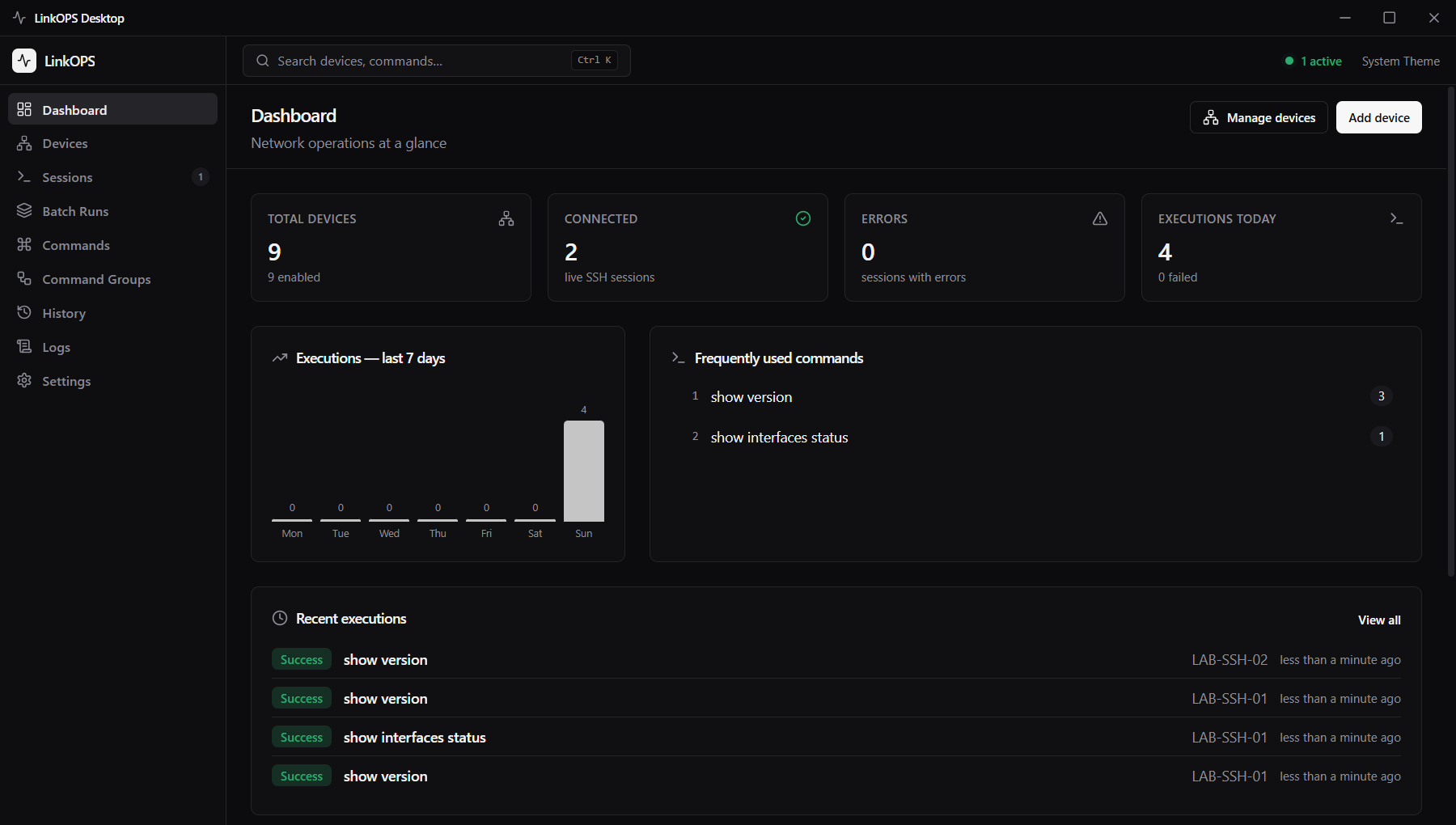
linkops — dashboard
Dashboard — LinkOPS Desktop

// download

Download LinkOPS Desktop

Pick your platform and install in under a minute. Windows, Linux and macOS are supported.

Version 3.0.1

WindowsTwo installers — pick one

Install

LinkOPS.Desktop.Setup.3.0.1.exe

Download .exe
  1. 1Run LinkOPS.Desktop.Setup.3.0.1.exe and follow the setup wizard
  2. 2Choose an install folder and finish the wizard
  3. 3Launch LinkOPS from the Start menu or the desktop shortcut

.msi installer

Windows Installer (.msi)

Download .msi
  1. 1Install
  2. 2Choose an install folder and finish the wizard
  3. 3Launch LinkOPS from the Start menu or the desktop shortcut

// capabilities

Everything you need to run your network, in one place

Everything you need to manage your network, in one place — no more jumping between tools.

01protocols

Four ways to connect

SSH, Telnet, Rlogin and Raw TCP — pick the right one for each device. Rlogin and Raw need no credentials, and commands run the same way on all four.

02devices

Device inventory & categories

Keep every device in one list, organized into colored categories with icons — switches of one region, routers of another. Search, filter and sort your whole fleet in seconds.

03sessions

Real terminal

A full terminal with colored output, live search, timestamps, copy and download. Keep SSH and Telnet sessions open side by side.

04server

Server desktop mode

Connect to a Linux server over SSH and manage it in a friendly graphical view — files, processes, services, packages, logs and network at a glance.

New
05pi

Raspberry Pi desktop

Connect to a Raspberry Pi over SSH and manage it like a desktop — board info, live SoC temperature, throttling, a full GPIO panel and the complete file system.

06batch

Batch runs

Run one command across many live sessions at the same time, with the output of every device side by side — and stop mid-run whenever you want.

07commands

Command templates & groups

Save the commands you use all the time and reuse them with one click, or bundle several into a sequence that runs in order.

08backups

Config backups

Scheduled snapshots of device configurations with a version history and a side-by-side diff — a bad change is always visible and easy to spot.

09history

Complete history

Every command you run is recorded — what, where, when, and what came back. Search and export it whenever you need.

10i18n

English & فارسی

A complete فارسی interface with right-to-left layout and Persian digits — plus English. Switch instantly from Settings.

11security

Security first

Passwords and keys are encrypted and stored by your operating system, and every command is validated before it runs.

12themes

Light & dark themes

Seven color palettes, each with a polished dark and light theme — pick the look that fits you.

13security

App lock & shared users

Protect the whole app with a password, and store shared credentials once — update them in one place, and every device picks up the change.

// the app

A look inside

Real screenshots from the desktop app. The UI is bilingual — English and فارسی with full RTL.

Dashboard
Activity at a glance — connected sessions, executions today, frequently used commands and the device inventory.

// connectivity

Connect the way your equipment needs

Modern and older equipment in one inventory. Pick the protocol per device — the app handles the rest, and commands behave the same on all four.

SSH

  • Secure, encrypted connections — works with older equipment too
  • Password or private-key login, passphrases supported
  • Fast per-command execution with reliable results for servers
  • Keeps long sessions alive

Telnet

  • For equipment that predates SSH
  • Automatic login — the app answers the login prompts for you
  • Handles the connection and detects prompts automatically
  • Collects output until the prompt returns, and skips --More-- pages for you

Rlogin

  • Simple connection for trusted hosts
  • No password needed — the trusted-host model
  • Same prompt detection and interactive terminal as Telnet
  • Default port 513, fully configurable

Raw TCP

  • Plain socket for console servers and serial-to-network adapters
  • Connects the moment the port opens — no login handshake
  • Banner and prompt detected automatically
  • Same command handling as every other protocol

// everything inside

The whole feature set, grouped by the job you are doing

Everything is here for a reason: it either removes a step, removes a doubt, or removes a tool you no longer need to open.

9 areas · 48 capabilities

Connectivity & sessions

One app for every protocol and every device, however old the equipment is.

  • SSH, Telnet, Rlogin and Raw TCP, chosen per device
  • Host, port and credentials saved for every device — shared users update in one place
  • Several devices open side by side, each in its own terminal
  • Automatic reconnect that restores the session and restarts its tunnels
  • Jump host / bastion support in the device editor

Inventory & organisation

A fleet list that stays readable once it passes a hundred devices.

  • Instant search, filters and sorting across the whole inventory
  • Colored categories with icons for regions, sites or roles
  • Tags, vendor, model and protocol badges on every device
  • Groups that aim a batch run at exactly the right devices
  • Explicit SSH / Telnet / Rlogin / Raw badges so you always know how you will connect

Terminal workspace

A terminal that behaves like a real one, not a text box.

  • Multi-tab terminal — every live session is its own tab and keeps running in the background
  • Colored output, timestamps and live search inside the scrollback
  • Copy or download the output of a session as a log file
  • A command bar with your templates always within reach
  • Batch results in their own pane, one column per device

Automation & scheduling

Stop typing the same commands at the same hour every day.

  • Reusable command templates, organised by category and device type
  • Command groups that run a sequence of commands in order
  • Batch runs that push one command to many live sessions at once
  • Scheduler: recurring batches or scheduled backups on a cron expression or a fixed interval
  • Next fire times previewed in the dialog, with quick cron and interval presets
  • Run now, toggle, edit or delete a job — every run is recorded with its status

Backups & configuration

Know what your devices looked like yesterday, and what changed.

  • Scheduled snapshots of device configurations, plus capture on demand
  • Version history per device with the date and size of every snapshot
  • Line-aware side-by-side diff between any two versions
  • Golden baseline per device with a drift chip (+added / −removed)
  • Full-text search across every stored configuration

Networking & tunnels

Reach management networks without leaving your desk.

  • Local forwards (ssh -L) that honour the real remote host
  • Dynamic SOCKS5 proxy (ssh -D) for diving into a management network
  • Reverse tunnels (ssh -R) that publish a service on your machine to the device's network
  • Tunnels start with their device and come back after an automatic reconnect
  • Live status showing the port that was actually bound

Servers, Raspberry Pi & hardware

SSH is not only for CLI-only boxes — look after the machine itself.

  • Server desktop mode: files, processes, services, packages, logs and network
  • Pi desktop: board information, live SoC temperature and throttling state
  • A 40-pin GPIO panel you can read and drive from the app
  • Browse, upload and download files on the server's file system
  • No setup on the device — nothing to install on the remote host

Security, privacy & audit

The app talks to real equipment, so it is built like it does.

  • Credentials encrypted by the operating system's own secret store
  • The interface process is isolated from the engine that talks to your devices
  • Every request and command is validated before it executes
  • App lock: a password gate in front of the whole application
  • Fully offline — no account, no telemetry, no cloud dependency
  • Complete history: command, device, trigger, duration, exit code and output — searchable and exportable

Experience & platform

The small things that decide whether you keep using a tool.

  • English and فارسی, with a full right-to-left layout and Persian digits
  • Light and dark themes with several palettes
  • Keyboard shortcuts for the things you do all day
  • A dashboard with live sessions, executions today and your most used commands
  • A licence page with your plan window, plus an update feed inside the app
  • Import and export your data to move between machines

// requirements

What you need

Windows

Windows 10 or newer (64-bit)

Linux

Debian / Ubuntu (.deb) or any distro (AppImage)

macOS

macOS 12 (Monterey) or newer

Memory

About 300 MB while running

Disk

Around 250 MB, plus your history and backups

Licence

One key covers desktop, Android and Box Lite

Offline

Yes — devices, history and licence checks all run locally

// install

Installed and connected in four steps

  1. 1Download the installer for your platform — .exe or .msi on Windows, .deb or AppImage on Linux, .dmg on macOS.
  2. 2Run it and open LinkOPS. The activation screen takes your licence key once.
  3. 3Add a device: name, address, port, credentials and protocol — everything is stored encrypted on your machine.
  4. 4Open a session and type, or hand the job to a template, a batch run or a scheduled config backup.

Every update during your licence period installs over the previous version — your data, devices and history stay where they are.

Moving machines? Export your devices and settings from one install and import them on the other.

// how it works

From installer to fleet-wide automation

Install once, describe your devices once, then let templates, batch runs and the scheduler handle the repetition.

  1. 01

    Install and activate

    Take the installer for your platform, paste your licence key once on the activation screen and the app unlocks.

  2. 02

    Add your fleet once

    Name, host, port, protocol, credentials and a category for every switch, router, firewall and server. Shared credentials update everywhere at the same time.

  3. 03

    Connect and work

    Open as many real terminal sessions as you need — side by side — plus server desktop mode, the Pi desktop and SSH tunnels.

  4. 04

    Automate and audit

    Templates, command groups, batch runs and the scheduler do the repetitive work, while history and config diffs tell you exactly what changed.

// faq

What engineers ask before installing

Which protocols does it speak?

SSH, Telnet, Rlogin and Raw TCP. SSH is the default and works with password or private key; Telnet, Rlogin and Raw TCP cover older switches, console servers and serial adapters. Commands behave the same on all four.

Does it need internet access?

No. The app talks to your own devices and stores everything locally. Licence checks, the database, the history and every command run on your machine, so an isolated lab works with no internet at all.

Where are my credentials kept?

Passwords and private keys are encrypted and stored by your operating system (the OS keychain), and they are never shown back by the interface — not even in a screenshot.

Can I manage Linux servers from it?

Yes. A server device type gives you the Server Desktop — files over SFTP, processes, services, packages, logs and network — and a Raspberry Pi device type adds the Pi Desktop with board information, live temperature, throttling and the 40-pin GPIO panel.

Is the Android app or Box Lite a separate purchase?

No. One licence covers the desktop app for Windows, Linux and macOS, the Android client and Box Lite for Raspberry Pi and headless servers — the same inventory, the same credentials and the same history.

How do updates work?

The app checks the release feed on startup and tells you when a new version is out. Install it over the previous one and your licence and data are preserved.

Install it once, keep your whole fleet in view.

Version 3.0.1 — Windows, Linux, macOS, Android and Box Lite, all on one licence.